The Auto Spell Correction feature in TruCap+ enhances data extraction accuracy by allowing users to manage and customize the application's dictionary. This documentation provides a comprehensive guide to using the Auto Spell Correction module, explaining its purpose and functionality within the TruCap+ environment.
The Auto Spell Correction module empowers users to enrich the TruCap+ dictionary with specific words relevant to their data extraction needs. These added words are then referenced by the auto spell correction utility during the data extraction process, ensuring greater precision and efficiency.
Key Features and Benefits
Customization of Dictionary: The module enables users to seamlessly expand the TruCap+ dictionary by adding industry-specific terms, abbreviations, or specialized jargon.
Improved Extraction Accuracy: By incorporating domain-specific terminology, the auto spell correction utility ensures that even complex or uncommon words are accurately recognized and extracted from documents.
Enhanced Data Consistency: The utilization of a comprehensive dictionary enhances data consistency, as consistent recognition and extraction of terms lead to a standardized dataset.
Accessing Auto Spell Correction
To access the Auto Spell Correction page, follow these steps:
-
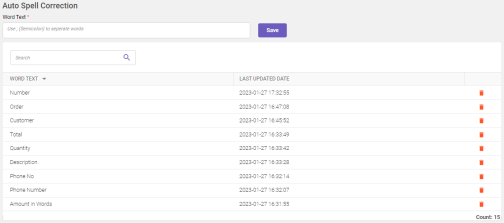
In the main menu, under Trucap+ Studio, click Auto Spell Correction. The Auto Spell Correction page opens.
-
Enter the desired word in the Word Text field and then click Save. The word will be added to the dictionary and displayed in a table under the Word Text column. (see above image).
Note:
-
A user can add a single word or multiple words using the ';' semicolon as a separator.
-
If you attempt to add a word that already exists, a message stating Word already exists will appear at the bottom of the screen.
-
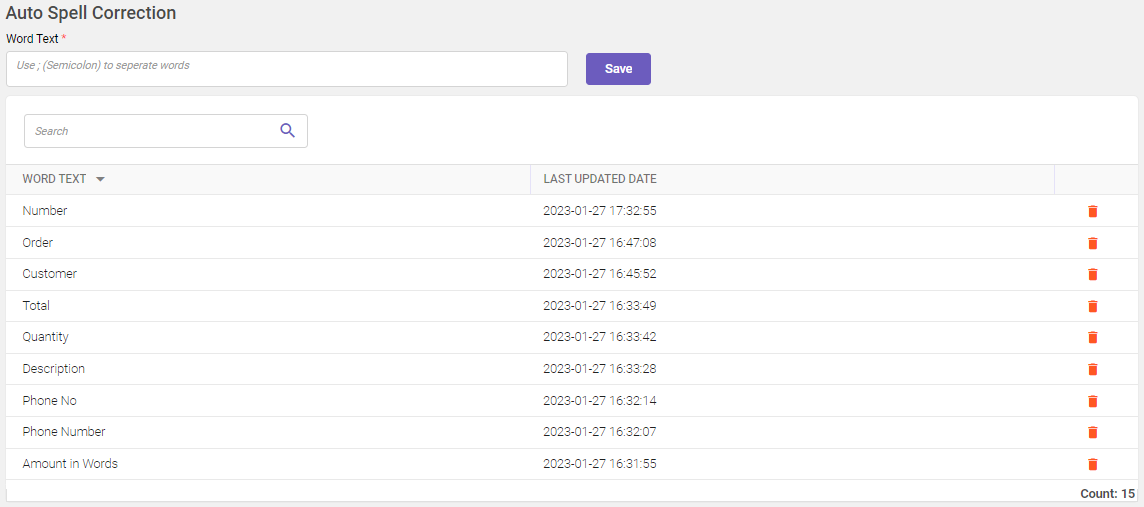
Added words can later be updated or deleted. To edit the word, click on the word and make the changes as required. To delete any word, click  icon corresponding to the word you wish to delete.
Working of Auto spell correction
When you add a word (see step 2) using auto spell correction, it gets added to the TruCap+ dictionary. The Auto correction utility then verifies the correctness of words in the document during extraction and fetches the data accordingly.
Note:
-
To use the auto spell correction service, you must enable auto correction in application settings.
-
The auto spell correction utility currently supports .TIFF file types. Refer to file types for more information.
-
The auto spell correction functionality operates for header and footer fields during data extraction. In the case of a table field, if the value matches at least 80%, the data will be extracted regardless of auto spell correction.
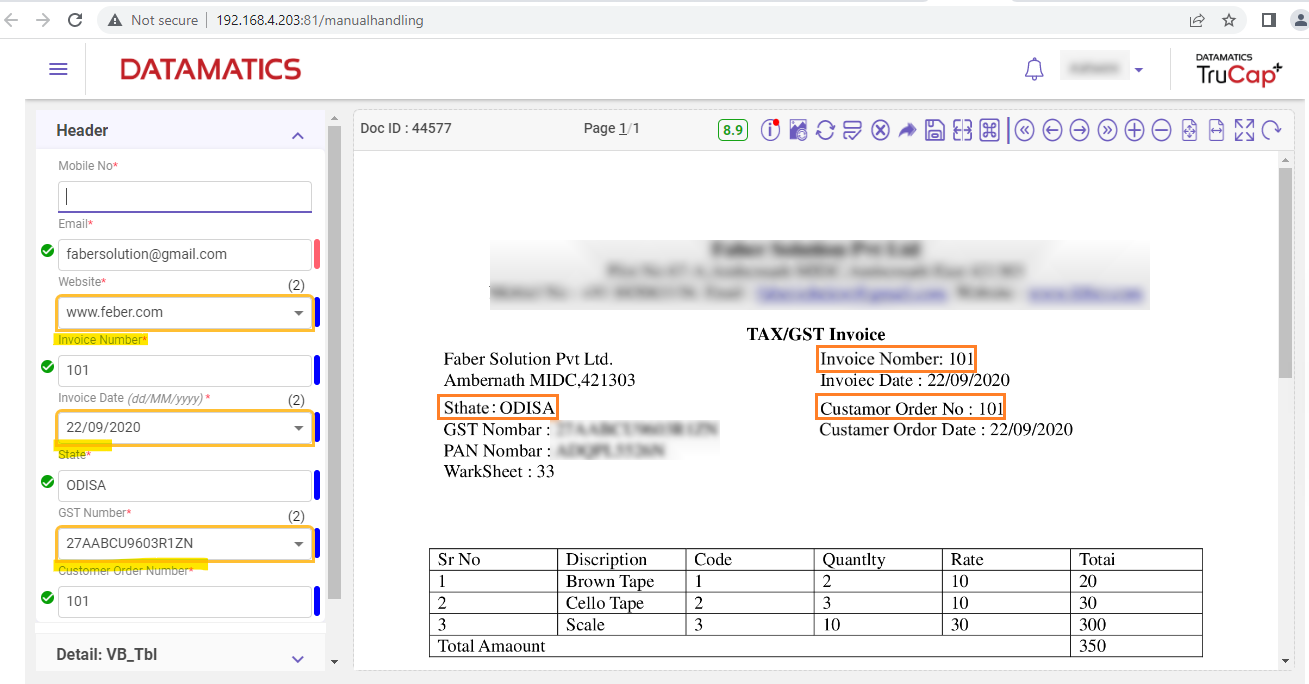
To understand more, in the below image, you can see that even though the document contains misspelled words (highlighted in the document viewer). TruCap+, utilizes the auto spell correction feature to accurately extract data..